


Support -> How To Edit the System Header
How To Edit the System Header
This guide will show you how to modify the look and feel of the administrative back end.
Step 1. Enter the "Look & Feel" Section
After selecting the "Advanced" tab in the Settings, select the "Look & Feel" tab.

Step 2. Edit the Colours
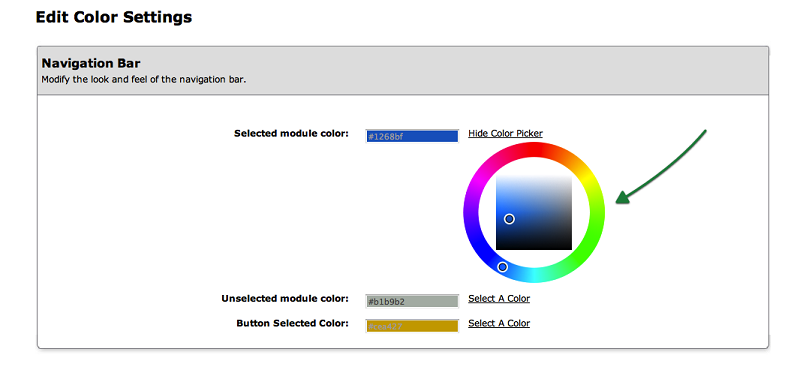
Click on the "Select a Color" link next to the corresponding navigation bar. By using the
Colour Selection Tool that appears, select the colour you wish to assign to the navigation
bar by dragging your cursor to the desired colour.
Step 3. Save Your Changes
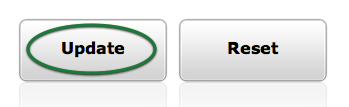
Don't forget to click the "update" button at the bottom of the page to confirm your changes.
You may reset you color scheme by clicking on the "Reset" button.
© 2009 - 2019 calendarspots.com