


Support -> How To Generate a Revenue Report
How To Generate a Revenue Report
This guide will show you how to generate a revenue report based on your appointment history.
Step 1. Select the Report Type
After selecting the "Reports" tab in the main work area, select the "Revenue" tab.

Step 2. Creating a Revenue Report
After selecting the "Revenue Report" tab, select the period you want the report to cover.
You may select a month in the past year, a year, or a specific range of dates. After
you have made your selection, click on the "Generate Report" button to view the report.

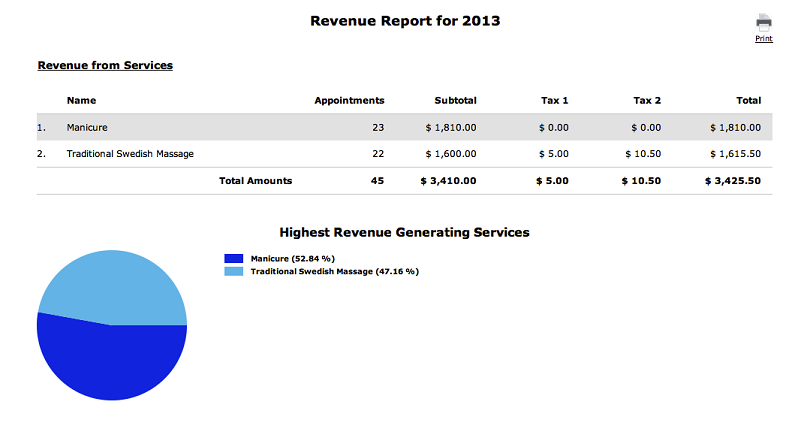
The report will show you subtotals for each service you provide, including taxes. A pie chart
will display similar information in a graphical format. You may print the report by clicking on
the "Print" link.
IMPORTANT
In order for revenue to be recorded and subsequently appear in reports, appointments
must be set to "Attended" status. The status may be changed manually in the appointment details window,
or may be set to "Attended" automatically by selecting this option under "Advanced Settings". All
"Attended" appointments are archived at 12AM every day.
For more information, refer to "How To Set an
Appointment to Attended"
© 2009 - 2019 calendarspots.com