


Support -> How To Reschedule or Modify a Booked Appointment
How To Reschedule or Modify a Booked Appointment
This guide will show you how to modify the details of a scheduled appointment in the online calendar booking system.
Step 1. Enter the "Staff Day Planner" Section
After selecting the "Planners" tab in the online calendar booking system, select the "Staff Day Planner" option. Today's
schedule will be displayed by default.

Step 2. Select the Appointment You Wish to Modify on the Scheduling Calendar
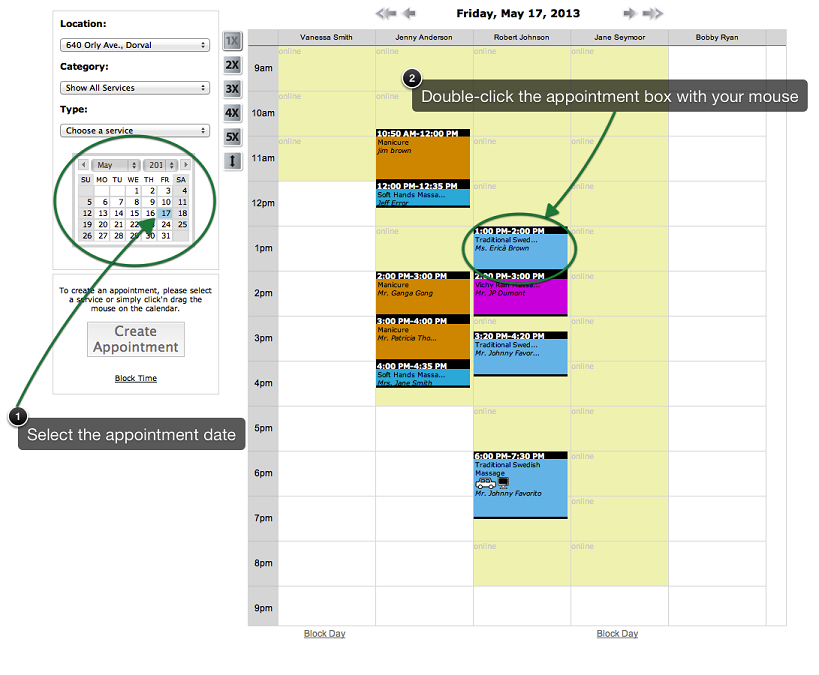
Find the date of the booked appointment by using the datepicker to the left of the appointment booking calendar.
The selected day will be highlighted in blue in the datepicker and the day's schedule will
appear to the right. You may also move to the desired date by using the arrows located above or below
the scheduling calendar.
In the schedule, select the appointment you wish to reschedule by double-clicking on it.
In the schedule, select the appointment you wish to reschedule by double-clicking on it.
Step 3. Modify the Scheduled Appointment
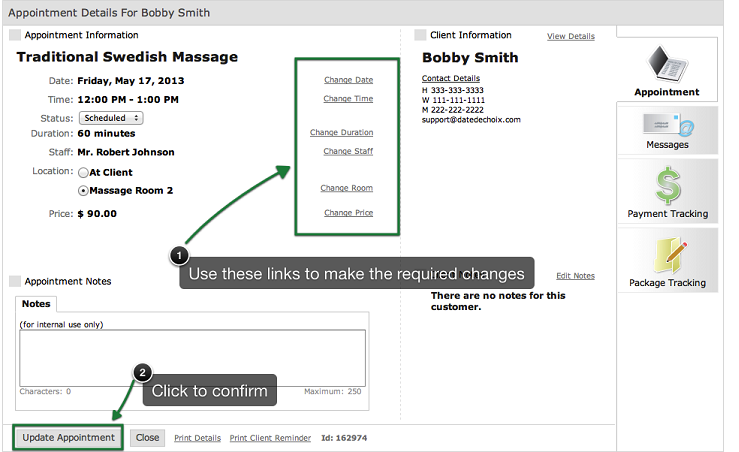
In the Appointment Details window that appears, use the "Change" links to make any modifications required.
Should there be any conflict with resources (such as a room or staff conflicts), a warning window will appear. To
confirm the new appointment, click on the "Update" button.
If you simply want to change the time of an appointment on the same day, you can use the Click n' Drag method.
In the daily schedule, select the appointment box by left-clicking the box's header (top of the box where the appointment time is indicated)
and drag it to the new time slot. Note that the time slot must be free for the entire duration of the appointment.
Should there be any conflict with the staff or any resources (such as a room conflict), a warning window will appear. You
may select a new time slot again by moving the appointment box to another available time slot.
© 2009 - 2019 calendarspots.com